iPhone
HUX on your iPhone
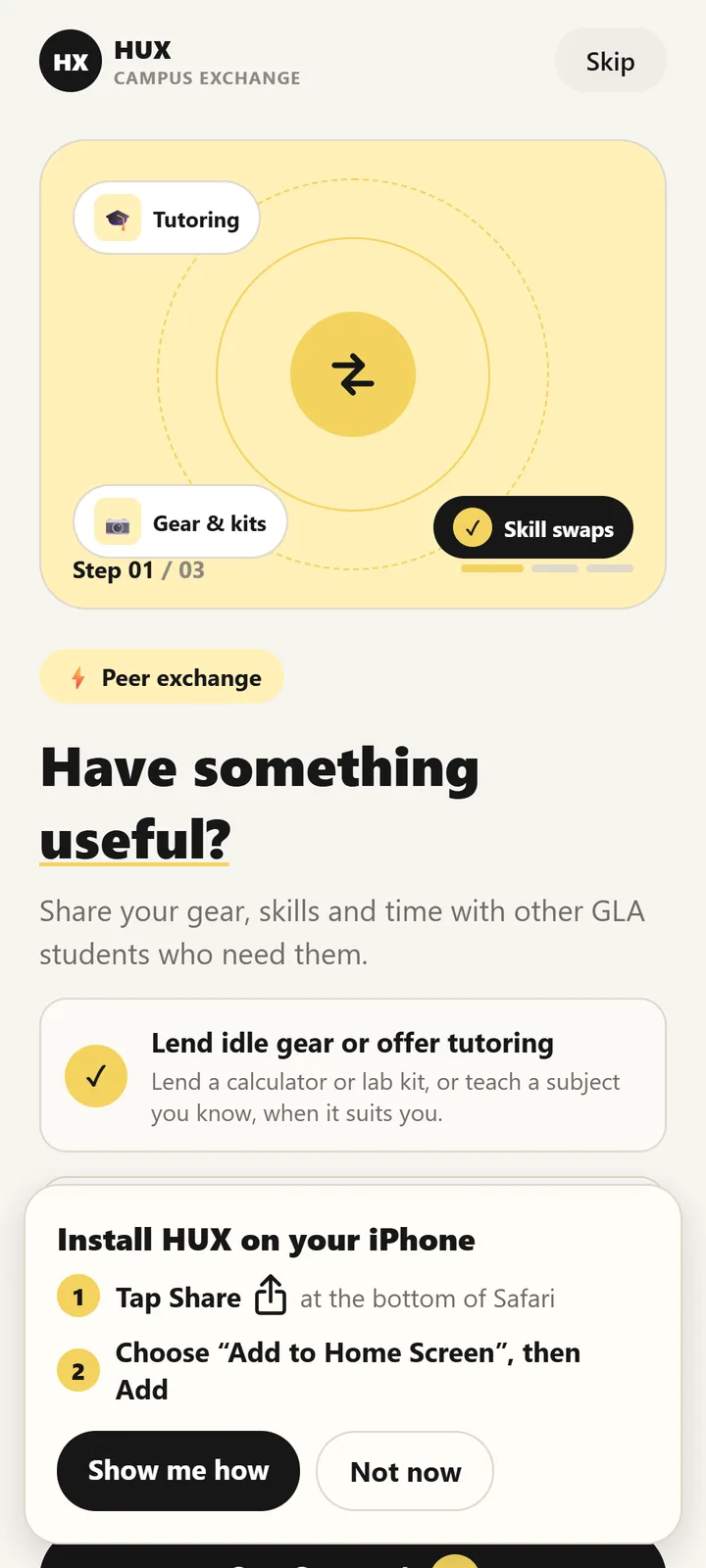
No App Store needed. HUX runs in Safari and goes on your Home Screen like an app, in two taps. The same account, listings and deals as the Android app.
Opens myhux.in/open in Safari. Then tap Share and “Add to Home Screen”.
- Price
- Free
- Needs
- Safari on iPhone or iPad
- Updates
- Automatic
- Notifications
- iOS 16.4 or newer
About a minute
Install in four steps
Open HUX in Safari
Go to myhux.in/open in Safari. Inside Instagram, WhatsApp or Gmail, first tap ••• or the compass and choose “Open in Safari”.
Tap Share
The square with an arrow pointing up: at the bottom of the screen on iPhone, at the top right on iPad.
Add to Home Screen
Scroll down the list, tap “Add to Home Screen”, then “Add”. If you see “Open as Web App”, leave it on.
Open HUX from its icon
Sign in with your GLA e-mail. Then turn on notifications: Profile → Notifications → Turn on notifications → Allow.
Notifications
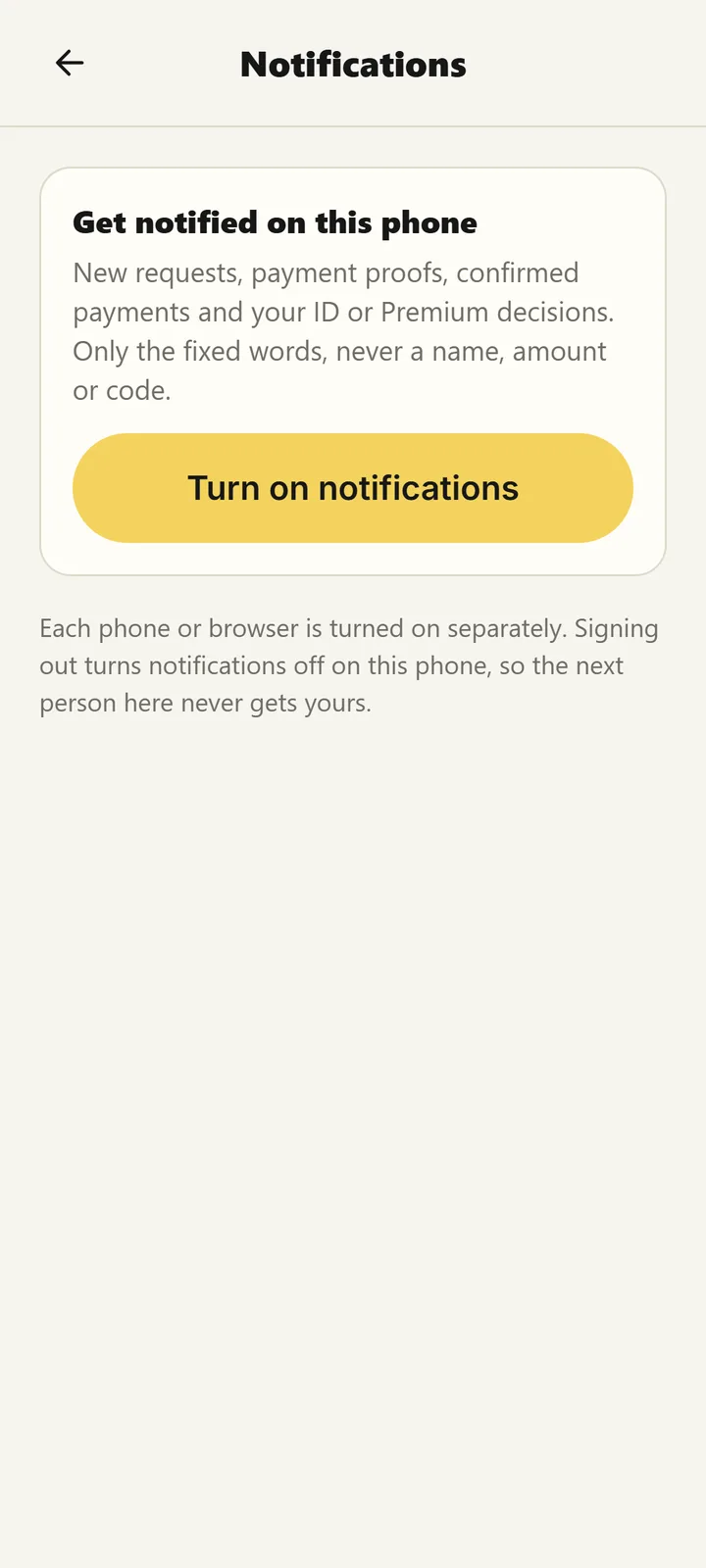
Turn on notifications once
iPhones show notifications only for apps on the Home Screen, from iOS 16.4. The Android app turns them on by itself; on iPhone it takes one tap.
- 1
Open HUX from its Home Screen icon and sign in.
- 2
Go to Profile → Notifications and tap Turn on notifications.
- 3
Tap Allow when your iPhone asks. Done: the screen says “Notifications are on for this phone”.
Waiting for your ID to be approved? The “Your ID is being checked” screen has the same button, so the approval reaches you as a notification.
one tap, then Allow
You are told when
- Someone asked for one of your listings
- Your request was accepted
- The buyer sent payment proof (check your UPI app first)
- The seller confirmed your payment: meeting point and code are ready
- The seller says the payment did not arrive
- A booking was cancelled, or the handover was confirmed
- Your ID was approved or not approved
- Your Premium payment was approved or not approved
New chat messages show inside HUX, as on Android.
Private by design
- A notification has only fixed words, never a name, an amount, a UPI ID or a handover code. Those show inside HUX after you open it.
- Each iPhone is turned on separately. Signing out turns notifications off on that phone, so the next person never gets yours.
- Blocked them by mistake? Settings → Notifications → HUX → Allow Notifications.
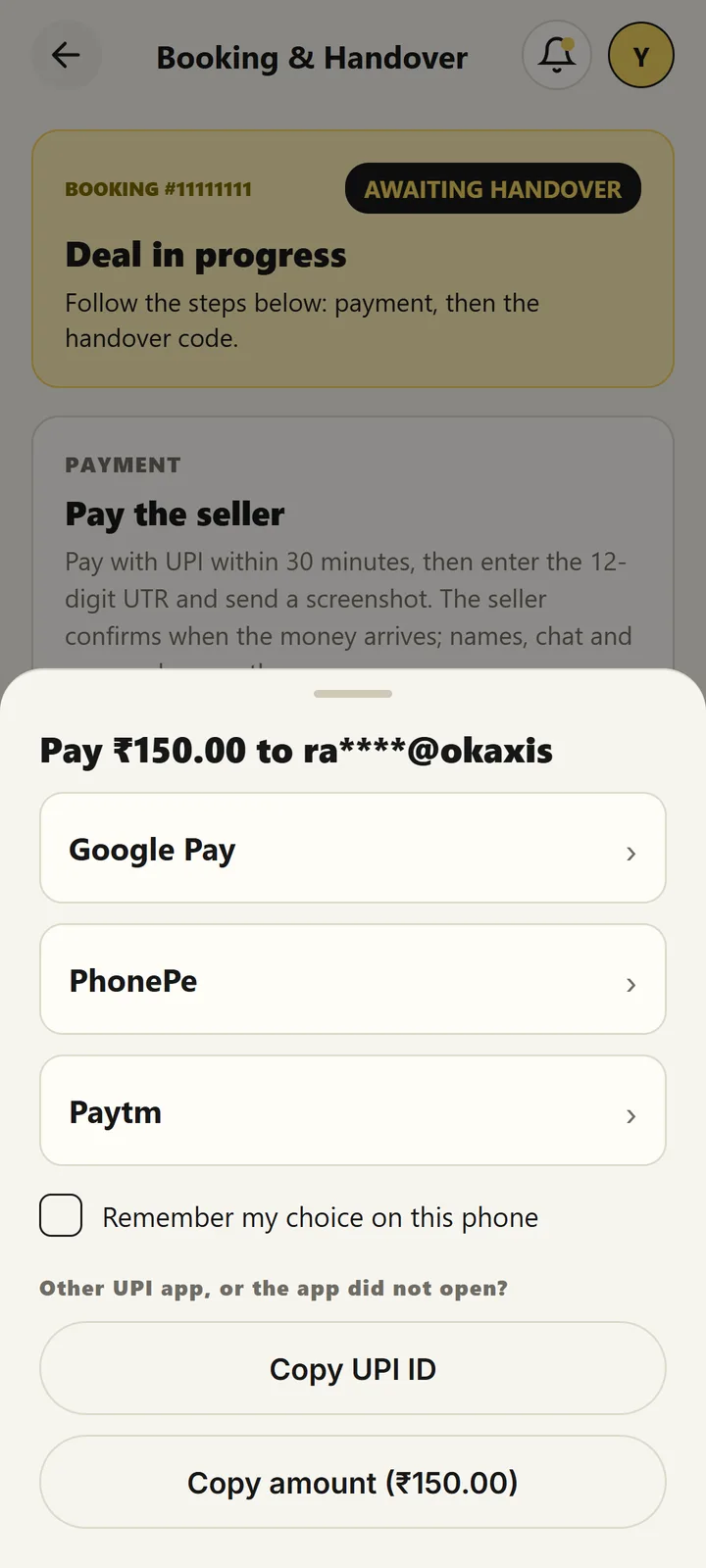
Paying by UPI on iPhone
Pick your UPI app.
iPhones have no “choose an app” screen like Android, so HUX shows the list itself. The amount and the seller's UPI ID come from the booking, as on Android.
- 1
Tap Pay with UPI and choose Google Pay, PhonePe or Paytm. Your app opens with the UPI ID and the amount filled in, if the app allows it.
- 2
Didn't open within 2 seconds? HUX says so. Tap Copy UPI ID and Copy amount and pay from any UPI app (BHIM, your bank's app...).
- 3
Tick “Remember my choice” and next time your app opens straight away.
- 4
Back in HUX, type the 12-digit UTR and send the screenshot. When the seller confirms, names, chat, the meeting point and your code open.
Selling? Add your UPI ID in Profile → Edit profile, the same as on Android: Get paid with UPI.
Good to know
iPhone and Android, side by side
| Topic | iPhone | Android |
|---|---|---|
| Install | From Safari: Share, then Add to Home Screen | The APK from this website |
| Updates | Automatic: every time you open HUX | Download the new APK |
| Notifications | Turn on once (iOS 16.4 or newer) | On by themselves |
| Paying by UPI | HUX lists Google Pay, PhonePe, Paytm + Copy | Android's own app chooser + Copy |
| Photos | The iPhone photo picker; HUX shrinks photos itself | Picker with a crop step |
| Account, listings, chat, deals, coins, Premium, merch | The same | The same |
The same safety
Every rule is checked by HUX's server: GLA e-mail and ID approval, names hidden until payment, the one-time handover code.
Never your UPI PIN
HUX never asks for your UPI PIN or an OTP, on iPhone or Android. Payments happen in your own UPI app.
Always up to date
There is nothing to download again: open HUX and you have the newest version. Signed-in stays signed in.
- That is on purpose: HUX on iPhone runs only from its Home Screen icon (that is what makes notifications and a full-screen app possible). Add it to your Home Screen, then always open HUX from the icon, not from a Safari tab.
- HUX on Android is the app: it shows a button to download it (the web version does not open there). On a computer you see a QR code: scan it with your phone's camera.
- Check that you are in Safari, not inside Instagram, WhatsApp or Gmail (there, tap ••• or the compass and choose “Open in Safari”). In the Share list, scroll down. Still missing? Scroll to the end, tap “Edit Actions…” and add it.
- On iOS 16.4 or newer, yes: tap Share in Chrome's address bar (top right), then “Add to Home Screen”. If you do not see it, use Safari.
- Yes. The steps are the same; the Share button is at the top right.
- No. Sign in with the same GLA e-mail and password as on Android. New to HUX? Sign up with your GLA e-mail, confirm it, upload your college ID and wait for the approval, exactly as on Android.
- Check that you opened HUX from its Home Screen icon (not from a Safari tab), that your iPhone has iOS 16.4 or newer (Settings → General → About), that Profile → Notifications says they are on, that Settings → Notifications → HUX allows them, and that a Focus mode is not hiding them.
- HUX tells you after 2 seconds. Tap Copy UPI ID and Copy amount, open any UPI app yourself and pay there. Some apps do not accept a filled-in payment to a personal UPI ID; Copy always works. If you ticked “Remember my choice”, HUX forgets an app that did not open.
- Yes. It is the same HUX: every rule (who can see your UPI ID, names hidden until payment, the 4-digit handover code, admin ID checks) is enforced by HUX's server, not by your phone. The connection is always encrypted (HTTPS). HUX never asks for your UPI PIN or an OTP.
- That was a bug in an earlier version, fixed on 1 November 2026. Close HUX completely (swipe it up from the app switcher) and open it again to get the fixed version. If the bar stays, check that Wi-Fi or mobile data is on and that Low Data Mode or a VPN is not blocking HUX, then try again.
- Close HUX completely and open it again: that loads the newest version. Still wrong? Pull down on the screen to refresh it. If that does not help, remove HUX from the Home Screen and add it again from Safari (you only need to sign in and turn notifications on again).
- Use the same GLA e-mail and password as on Android. Forgot it? Tap “Forgot password?” on the sign-in screen; the e-mail link opens our website, where you choose a new password. New accounts must confirm their e-mail first.
- You do not need to. HUX updates itself. To get a new version straight away, close HUX completely (swipe it up) and open it again.
- Email [email protected] with what you tapped, what you saw (a screenshot helps) and your iPhone model and iOS version (Settings → General → About). Never send your password, UPI PIN or OTP.
- Press and hold the HUX icon, then “Remove App” (or “Delete Bookmark”). This signs you out on that iPhone and stops its notifications.
- Yes. Everyone is in the same HUX: iPhone and Android users see the same listings and chat, book and pay each other the same way.
Ready? Open HUX in Safari.
On Android instead? Download the app.